
Install guide
How to Install Happy Club on Android
A clear installation walkthrough for the Teen Patti Happy Club APK, including the permission prompts Android shows and the errors players hit most often.
Free for Android. Opens the official game page in a new tab.
Installing an APK is not complicated, but Android deliberately adds friction so that nothing installs by accident. The steps below cover what each prompt means, so you are not guessing at a warning screen.
The whole process takes a couple of minutes. Keep the phone on Wi-Fi throughout, because the game downloads additional assets the first time it opens.

Step 1 — Prepare your phone
Check that you have enough free storage for the file plus the assets the game unpacks after install, and that your Android version meets the minimum requirement.
Close background apps if your phone has 2 GB of RAM or less. The installer is lighter when the device is not already stretched.
Step 2 — Allow installation from this source
On Android 8 and newer the permission is granted per app rather than system-wide. When you tap the downloaded file, Android will offer to open Settings for the browser or file manager you used.
Turn the switch on, go back, and continue. Once the game is installed, return to that screen and turn the permission off again — it costs nothing and closes the door behind you.
- Settings → Apps → Special access → Install unknown apps
- Pick the browser or file manager that holds the downloaded file
- Enable Allow from this source
- Install the game, then disable it again
Step 3 — Run the installer
Open Downloads, tap the APK, and review the summary screen. Confirm Install and wait for the progress bar to complete without switching apps.
If Play Protect offers to scan the package, let it. A scan takes a few seconds and gives you a second opinion on the file.
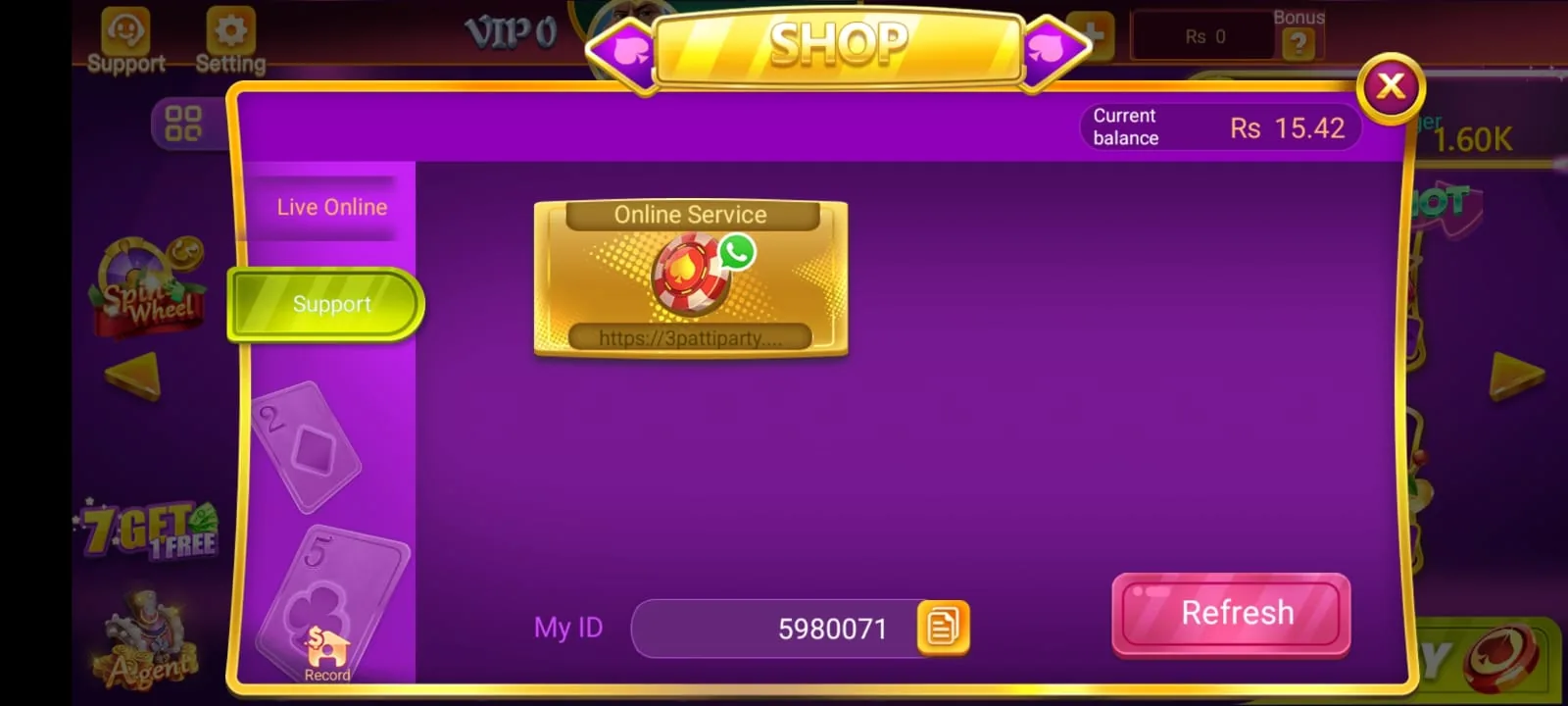
Step 4 — First run and account setup
Open the game while still on Wi-Fi. The first launch downloads table graphics and sounds, so allow a minute or two before the lobby appears.
Create or sign in to your account and note the recovery method you choose. Linking a phone number or social login is the only reliable way to restore progress if you change devices.
Common installation errors
Almost every failed install falls into one of these categories, and each has a direct fix.
- App not installed — an older build with a different signature is present; uninstall it and retry.
- Parse error — the download was incomplete or your Android version is too old.
- Insufficient storage — free space, then reopen the file rather than downloading again.
- Blocked by Play Protect — scan the file and only continue if you trust the source.
- Stuck on the loading screen — the first-run assets are still downloading; stay on Wi-Fi.
Frequently asked questions
Why does Android say the app is from an unknown source?
That message appears for every app installed outside the Play Store. Allow the browser or file manager to install once, then switch the permission back off.
What is a parse error and how do I fix it?
A parse error means the file is incomplete or not compatible with your Android version. Delete it, download again fully, and check that your phone meets the minimum Android requirement.
Do I need to uninstall the old version first?
Usually no — installing over the existing app keeps your account. Only uninstall if the installer reports a signature conflict.